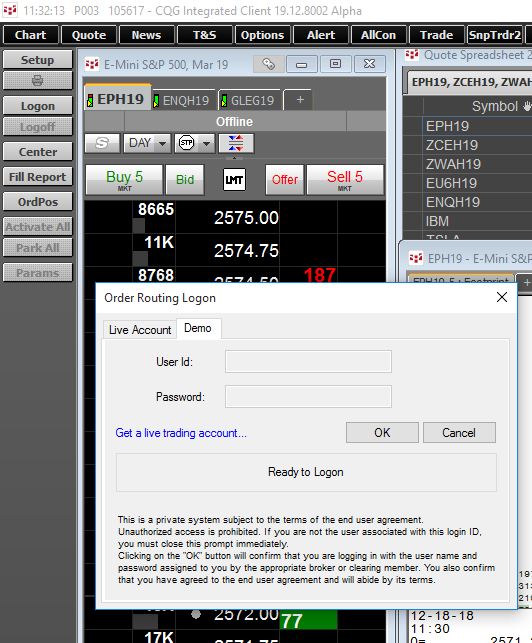
With demo trading (simulated live trading), you can view sample pages and place mock trades. Demo trading can be particularly helpful for new CQG IC users.
A limited set of symbols is available in demo mode.
To Log in using Demo Mode:
•Select a Trade Routing Application, such as the DOMTrader, and click Logon.
•Select the Demo Tab.
•You do not need to enter in any information. Click OK and Demo trading is available.
•The “Logon” button will change into a “DEMO” button with an orange background.
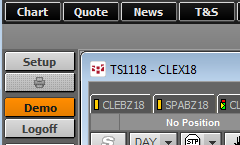
•The word “DEMO” is displayed in the title bar.

•A watermark indication you are in DEMO mode will appear across the main CQG window.
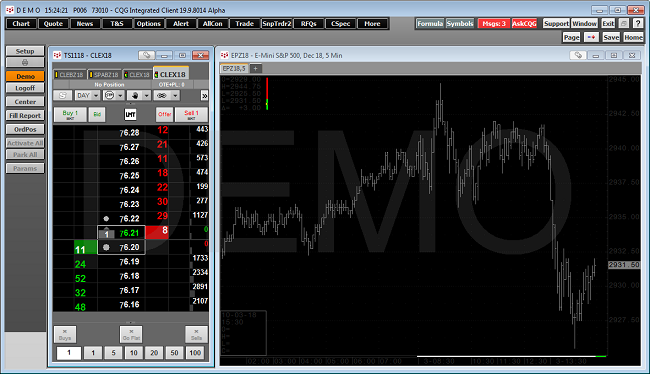
Note: In demo mode when you log on to trade, the system automatically logs you on with a demo account.
To move from demo to live trading
When you’re ready to trade on your live account, you can exit demo trading mode. Make sure you’re logged off trading.
•Select a Trade Routing Application, such as the DOMTrader, and click Logon.
•Select the Live Account tab.
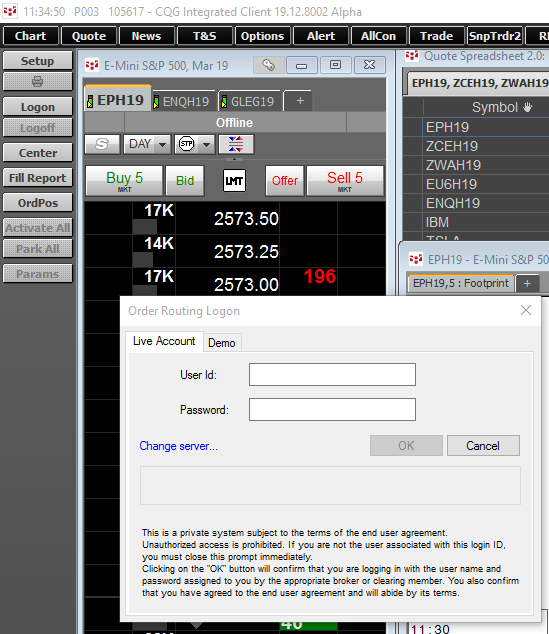
Note: In live mode when you log on to trade, you are prompted for your user name and password.
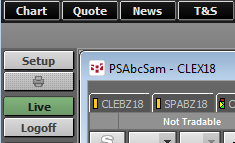
When connected to a live trading account, the “Logon” button will change into a “LIVE” button with a green background.
Commodities available for demo trading
All tradable contracts from CME, CBOT, COMEX, NYMEX, ICE U.S. and SGX are available in demo mode.